

Creating New Sub-Accounts
Sub-AccountsCreating accounts for clients and colleagues
How do I create a sub-account in AccuRanker?
Creating sub-accounts allows you to create accounts for your clients efficiently, giving them access to their own account without having to grant access to your own data.
Here’s how you create a sub-account from scratch:
Step 1)
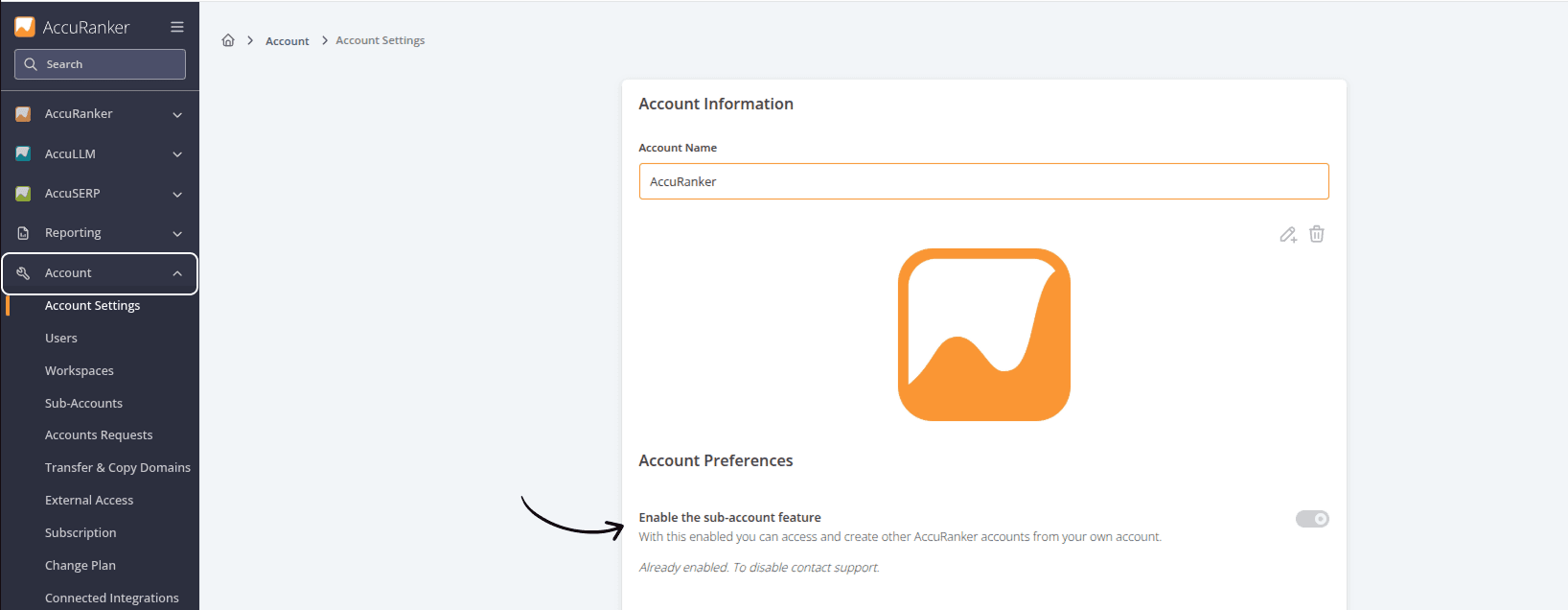
Go to Account and select “enable Sub-Accounts”.
Step 2)
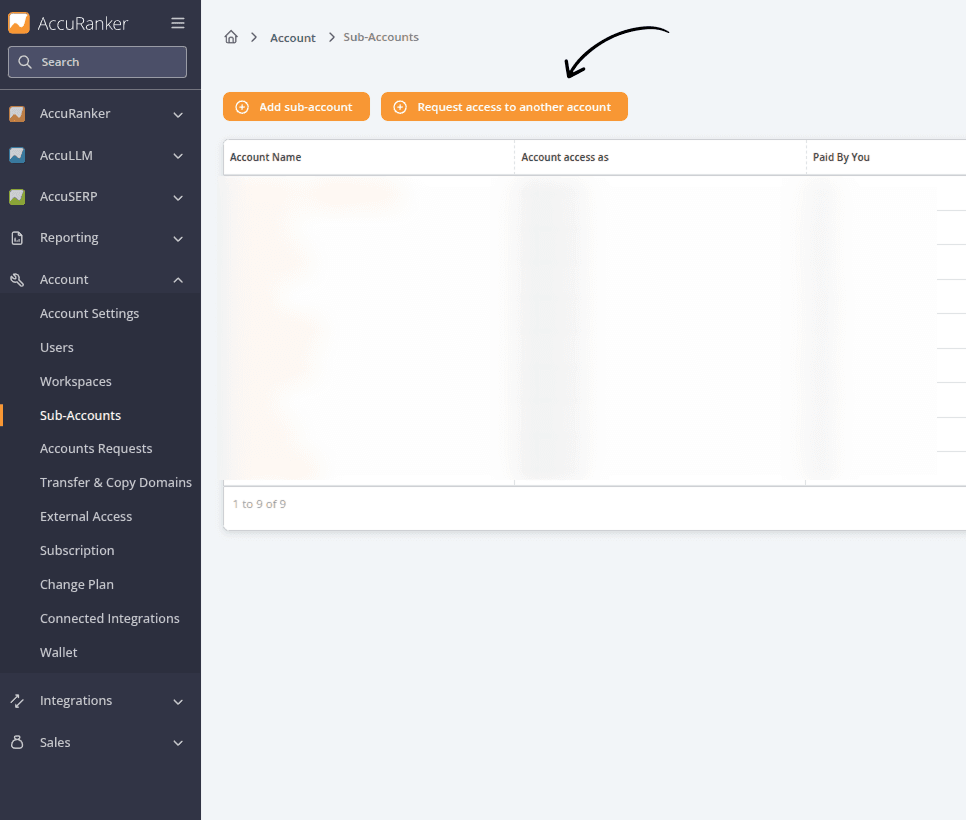
Go to the Sub-Accounts section in the left side and click “Add sub-account”.
Step 3)
From here you will be prompted to set up the account. First you’ll need to choose who you want to pay – yourself or the client.
If your client already has an account and is paying for a subscription, follow this guide instead.
Important note: If the customer pays for the subscription, they will not have a trial account, but be prompted to pay for their subscription when logging in.
Step 4)
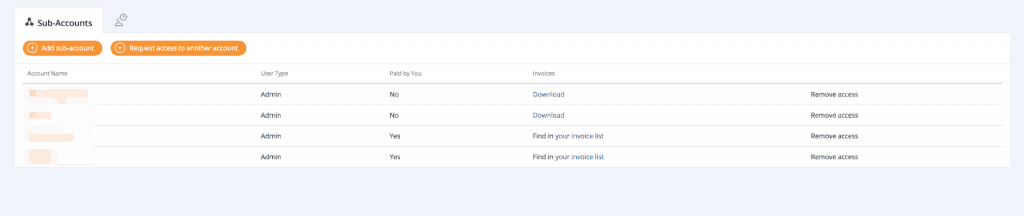
Once created, the user will receive an email with login details. You can access the account in the Sub-Accounts tab.
Related help guides
Integrations
Requesting Access to Another Account
Move/Copy Data to and from Sub-Accounts
Still need help?
Customer support
Our live support team is ready to assist you with any issues.