

Report Templates
ReportsHow to create and manage your report templates
How can I create my own report template in AccuRanker?
Report templates allow you to customize what kind of data your reports show, as well as the message it sends to its receiver.
Report templates only work for PDF reports.
Step 1)
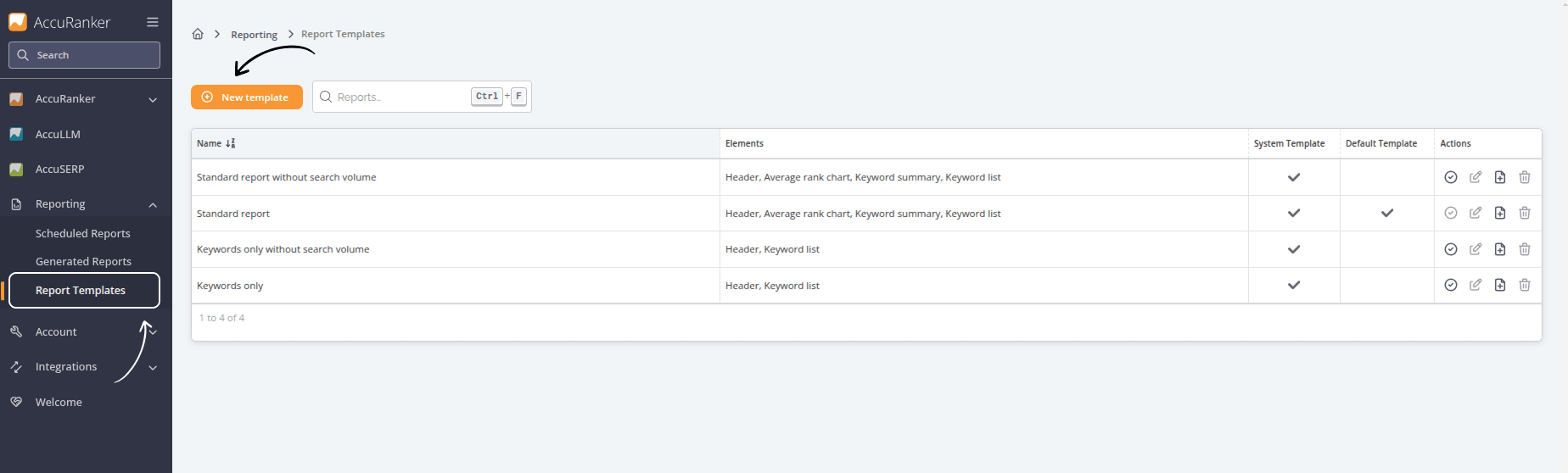
Go to the Reporting tab on the left-hand menu, select “Report templates” and then “New template”.
Step 2)
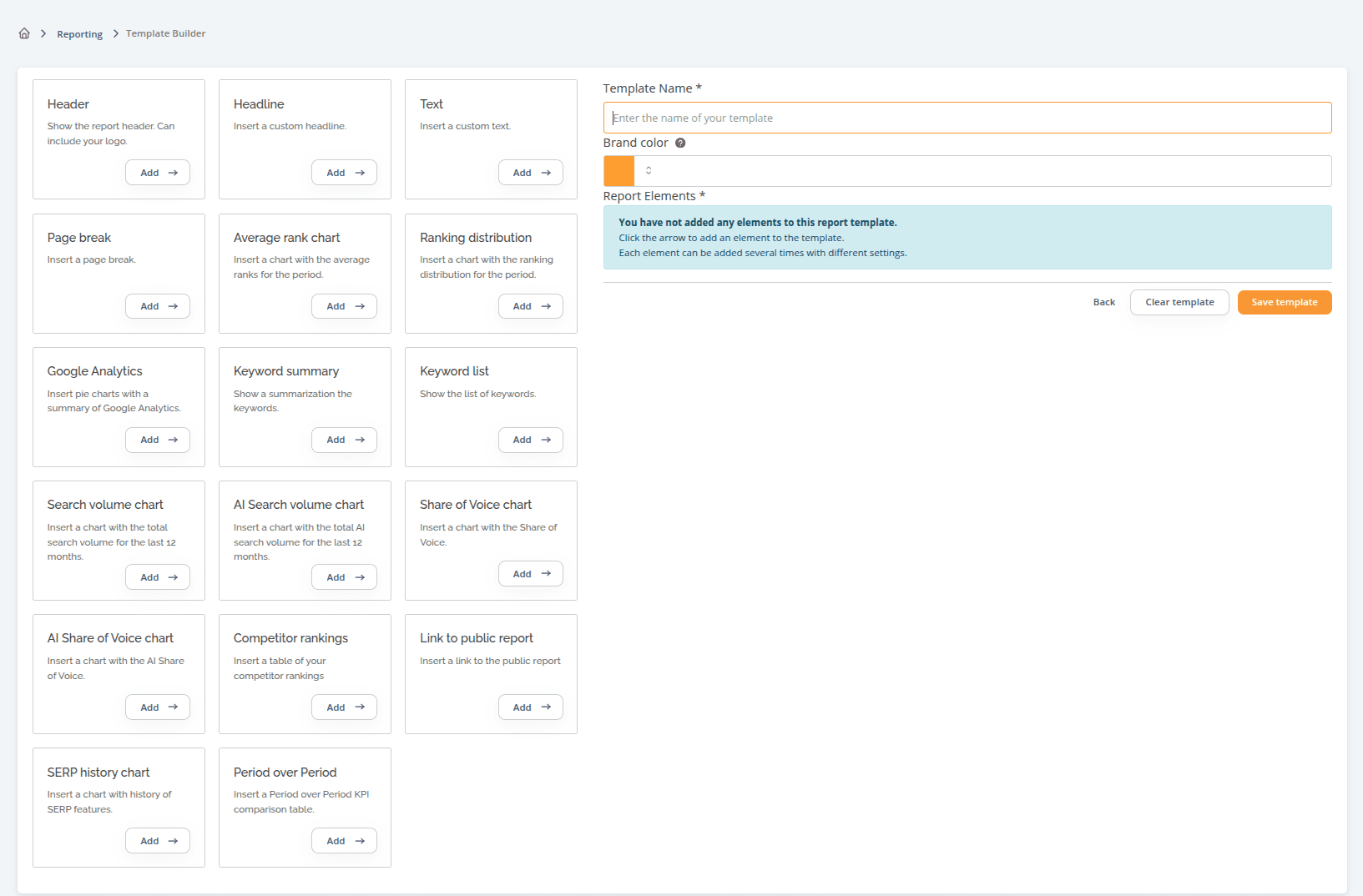
The first thing to do when creating a new template, is to give it a name and select a brand colour.
Step 3)
In this section you can add elements and customise your template. Simply select the element that you want to include in your template.
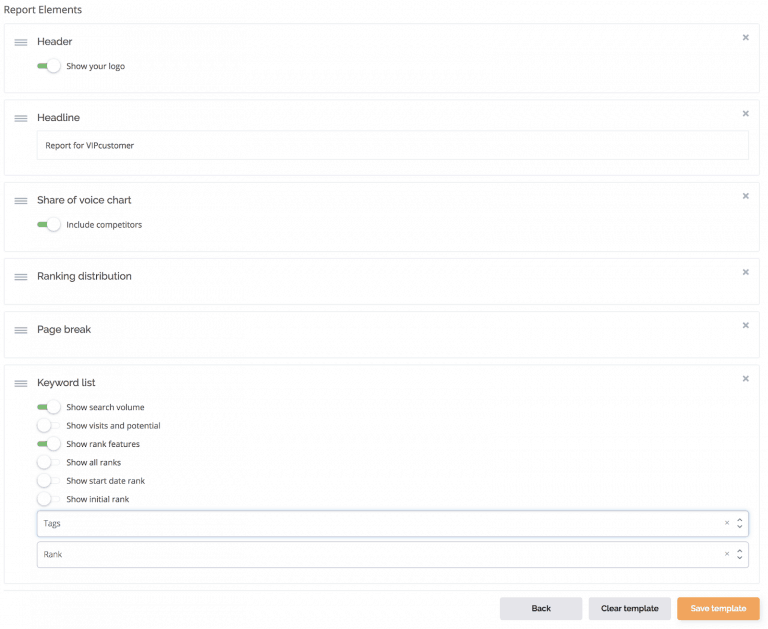
The order of elements reflects the way they will be presented in a PDF report. Different elements also have various features that you can enable or disable.
The options available to customise your template include:
- Header – Show the report header, with the option to add your own logo
- Headline – Insert a custom headline
- Text – Insert a custom text
- Page Break – Insert a page break
- Average Rank chart – Insert a chart with the average ranks for the period
- Ranking Distribution chart – Insert a chart with the ranking distribution for the period
- Google Analytics summary – Insert a pie chart featuring a summary of Google Analytics
- Keyword summary – Show a summary of the keywords
- Keyword list – Include the list of keywords
- Total Search Volume chart – Insert a chart with the total search volume for the last 12 months
- AI Search Volume Chart - Insert a chart with the total AI search volume for the last 12 months.
- Share of Voice Chart – Insert a chart showing the Share of Voice charts
- AI Share of Voice Chart - Insert a chart with the AI Share of Voice.
- Competitor Rankings – Insert a table of your competitors’ rankings
- Link to Public Reporting – Include a link to a public report.
- SERP History Chart - Insert a chart with the history of SERP features.
- Period over period - Insert a Period over Period KPI comparison table.
Below is an example of a template:
If you would like to read more information regarding Reports then go to our Help Section.
Related help guides
Branded Reports (Adding Logos to Reports)
Scheduled Reports
Downloading Reports
Still need help?
Customer support
Our live support team is ready to assist you with any issues.