

Downloading Reports
ReportsHow to instantly download customised PDF, CSV and Excel Reports in AccuRanker
How can I download a report in AccuRanker?
Step 1)
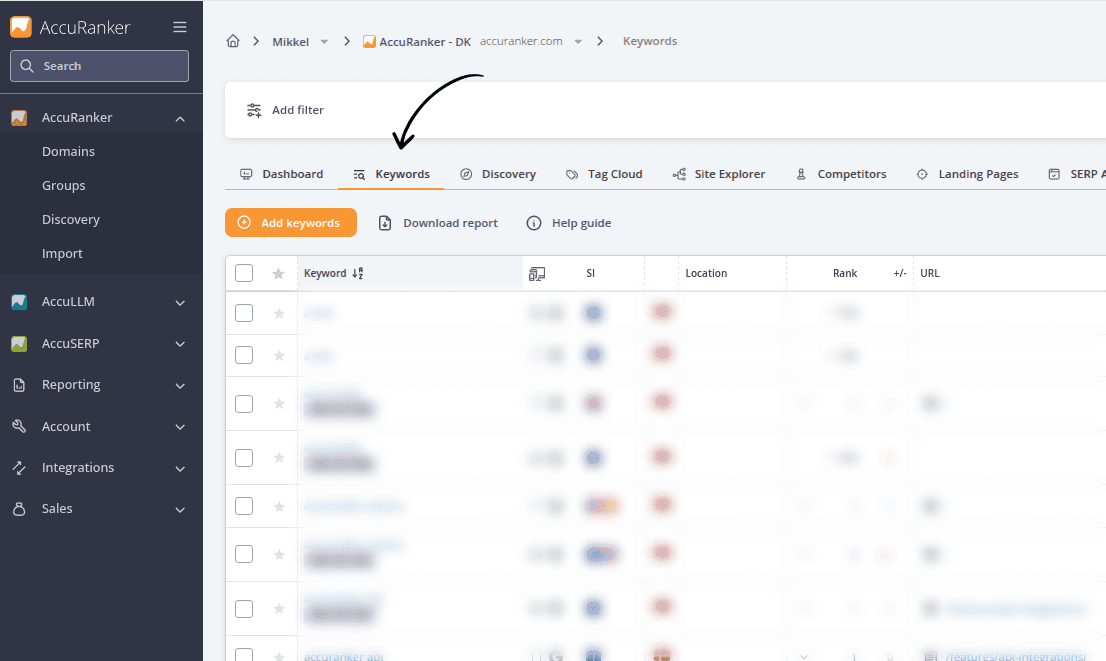
Go to the Keywords list for the domain you want the report for.
Step 2)
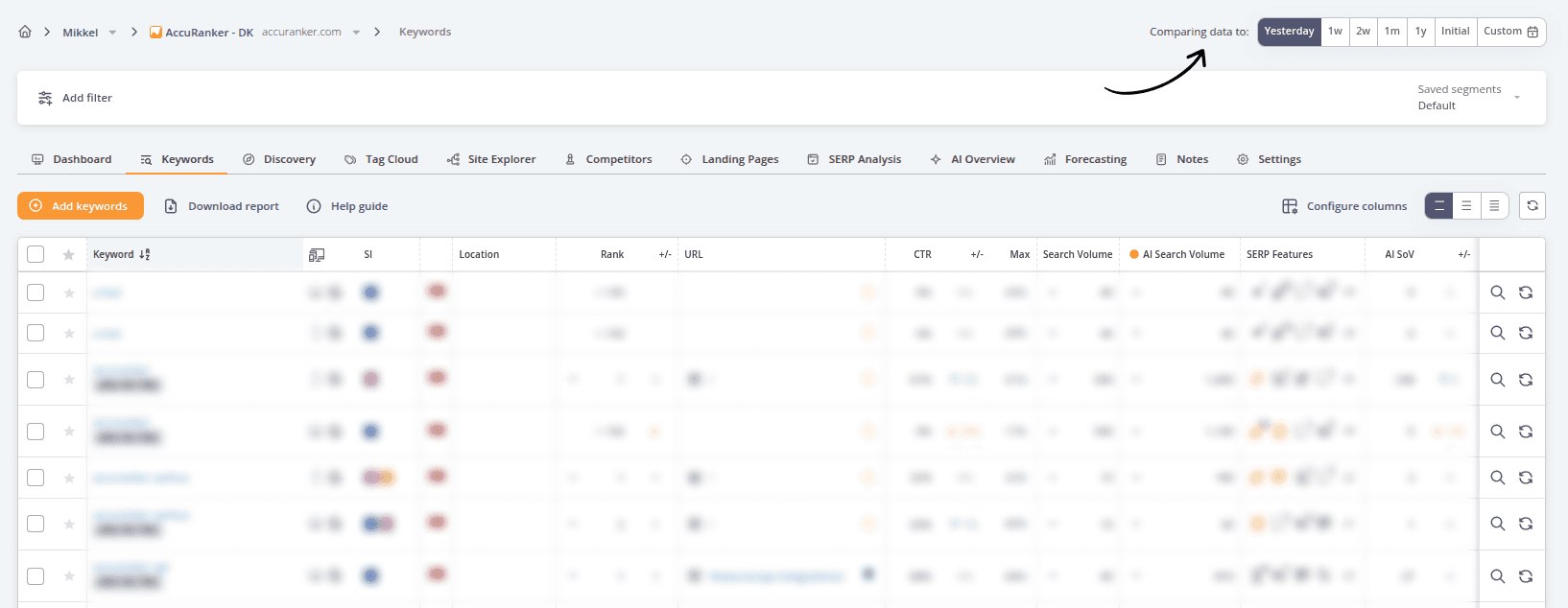
Select the dates you want to compare, and any filters you want to add to your report.
Step 3)
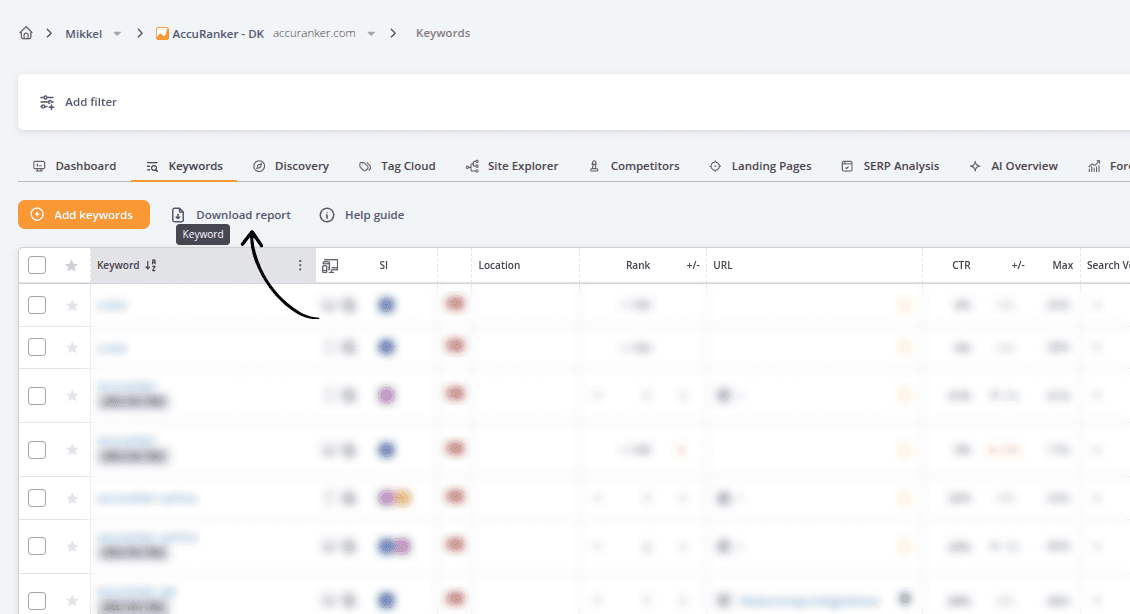
Click “Download Report”.
Step 4)
Select the report type (CSV, Excel, Sheets or PDF), report template, language and email if you wish.
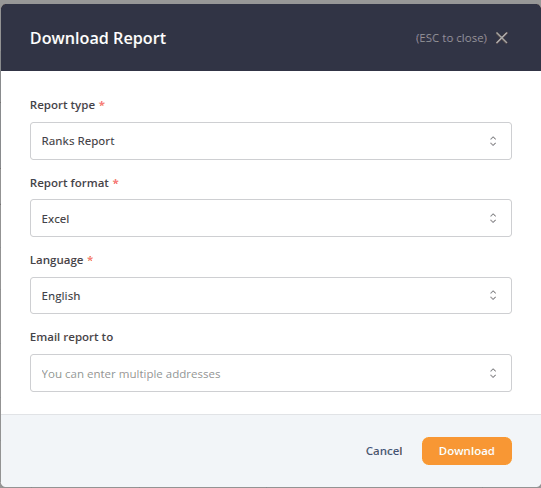
Once done, simply click “Download” and that’s it!
Would you like to know how to export AccuRanker’s data into Google Spreadsheets? Read the guidelines on how to create Google Spreadsheet reports.
Related help guides
Cannot Download Reports
Report Templates
Google Spreadsheet Reports
Still need help?
Customer support
Our live support team is ready to assist you with any issues.