

Public Report
ReportsHow to use the public live report link feature in AccuRanker
How to create a public report
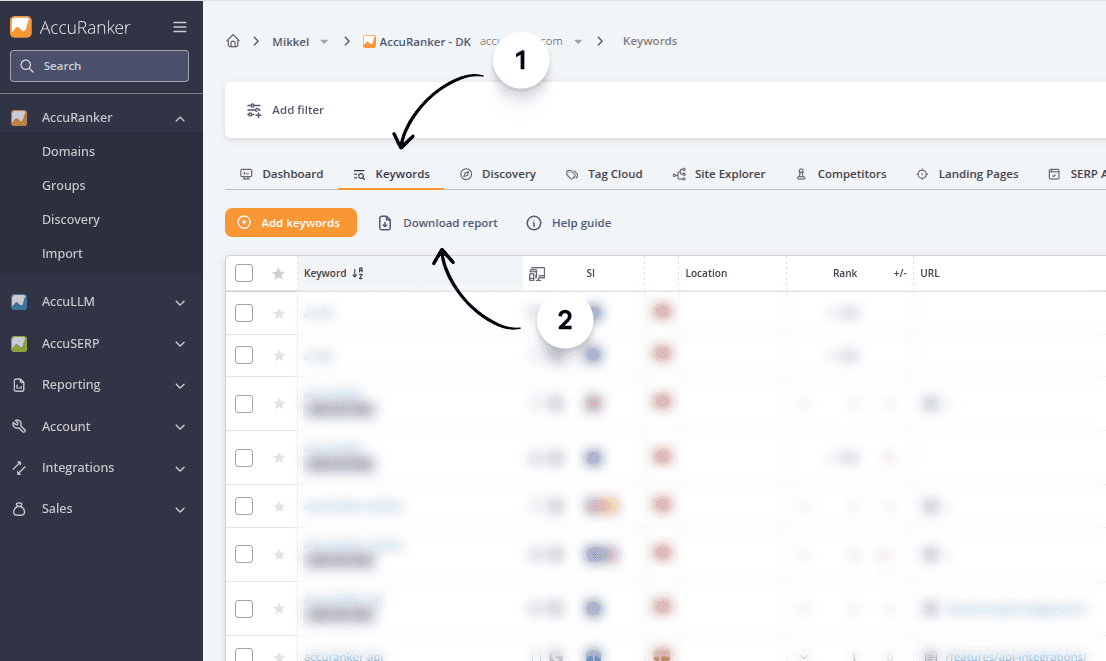
Step 1)
Navigate to the keywords list of the domain you want to create a report for, and click “Download report”.
Step 2)
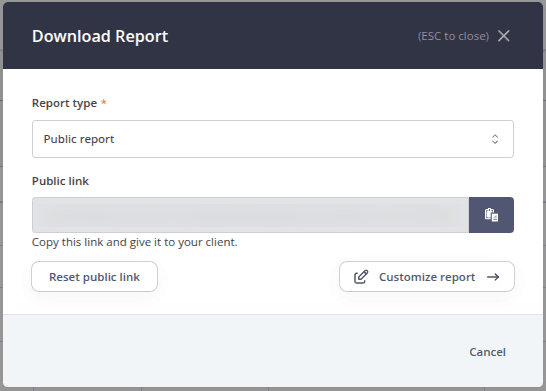
Under “Report type”, select “Public report”. From here, click the green button to copy the link to your clipboard.
Step 3) Customisation
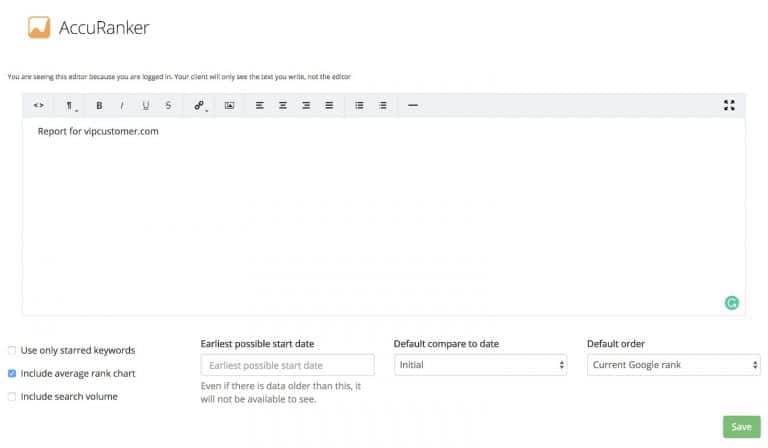
Assuming you are already logged into your account, entering into the Public Report link will give you editorial privileges.
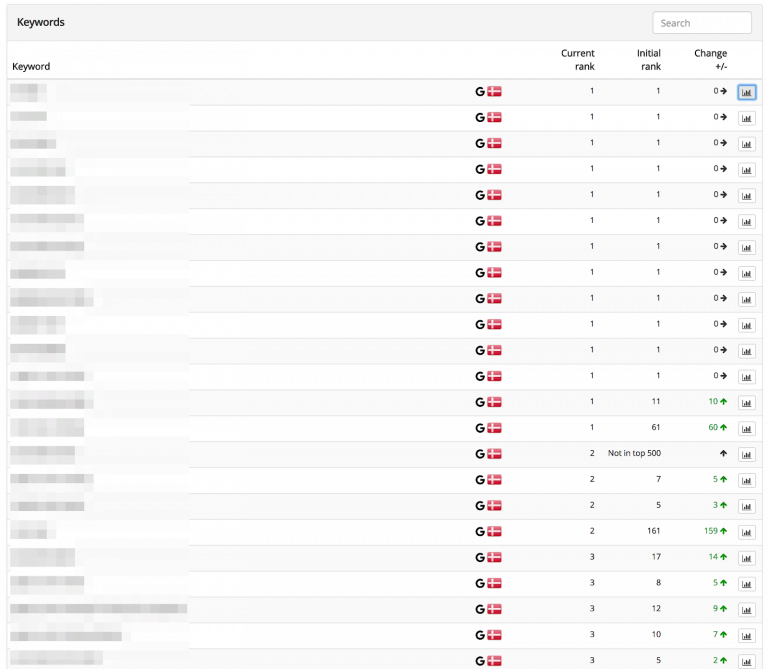
Here you can structure and design the report. You can see an example of a public report below:
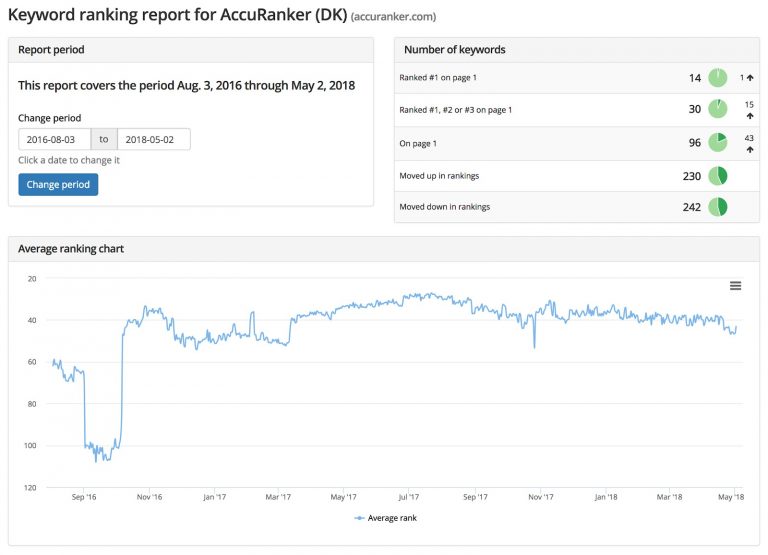
Sample public report
Can I share AccuRanker’s reports using a link?
Public reports can be shared as a link. The advantage is that they always stay updated and are easy to access. These are perfect for clients or managers who want to stay up to date.
Related help guides
Branded Reports (Adding Logos to Reports)
Scheduled Reports
Downloading Reports
Still need help?
Customer support
Our live support team is ready to assist you with any issues.