

Connecting to Google Analytics
IntegrationsIntegrating your AccuRanker account with Google Analytics
How do I connect Google Analytics to my AccuRanker account?
To get the most out of AccuRanker, we recommend connecting your Google Analytics and Google Search Console account. Doing this will ensure you get more in-depth data. This includes insights on organic traffic and landing page revenue.
Step 1) Begin
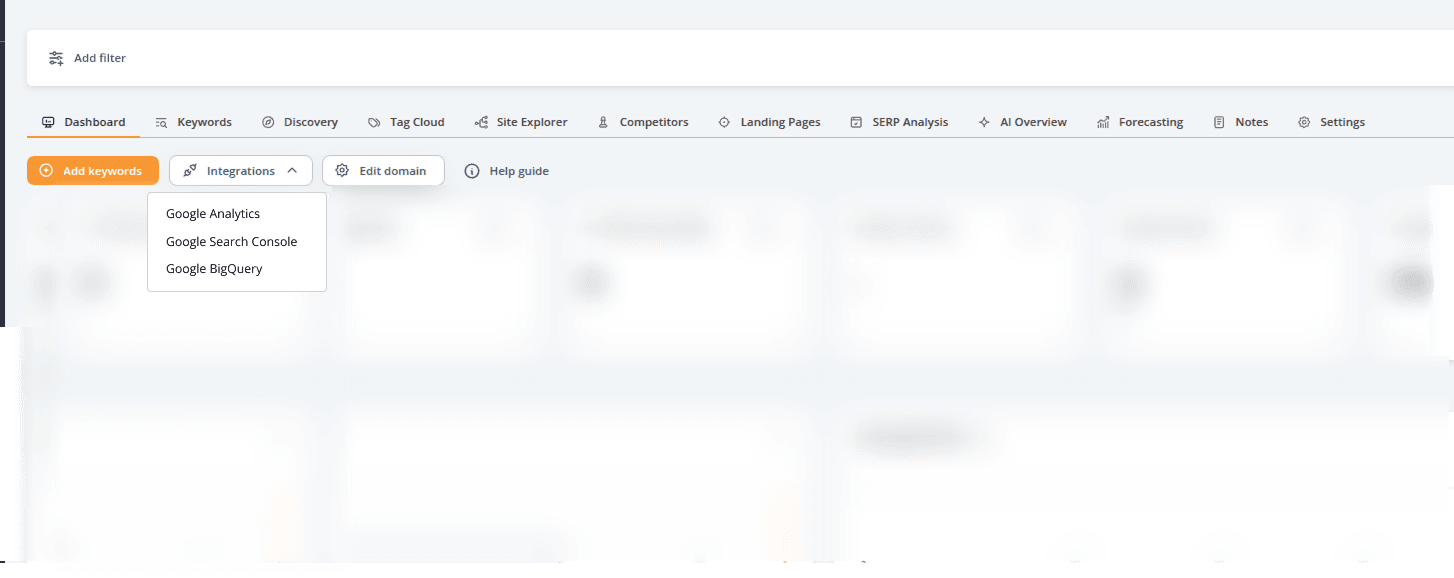
Go to the overview page for the domain in question, and click “Integrations” - Select "Google Analytics".
Step 2) Select Provider
Select Google Analytics as the provider.
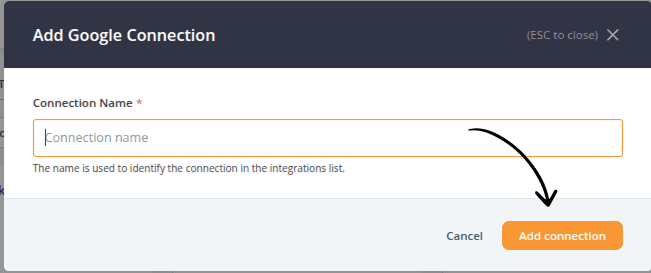
Step 3) Choose Connection
We recommend being detailed and precise to remember what each connection represent going forward.
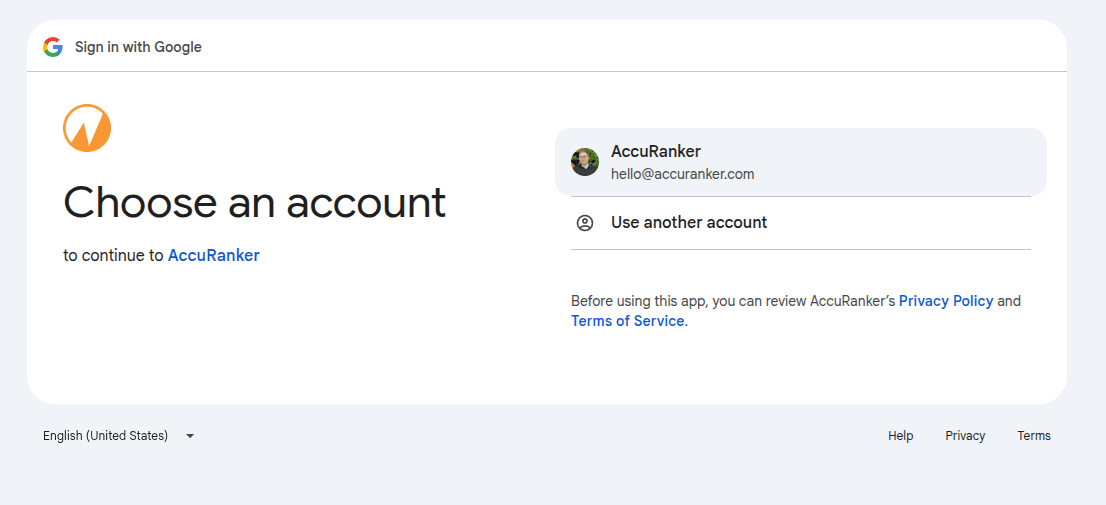
Step 4) Choose Analytics Account
Select your google account, or use Use another account to log in another account.
Step 5) Click “Allow”
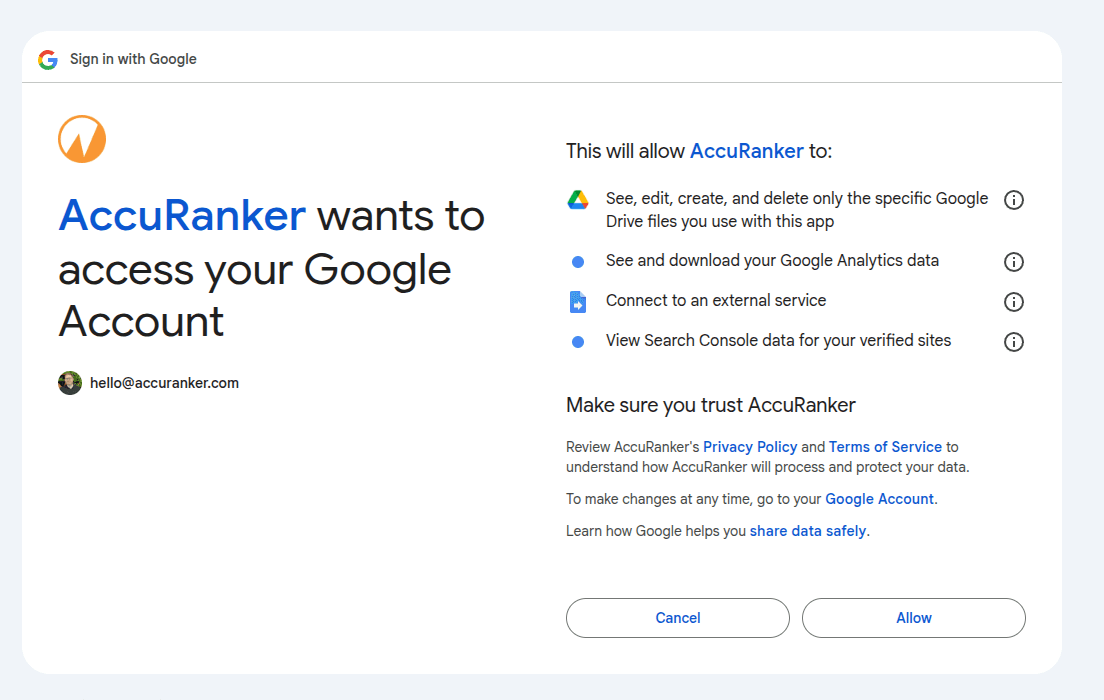
Step 6) Select the Google Analytics account to use for this domain, and click “Select account”.
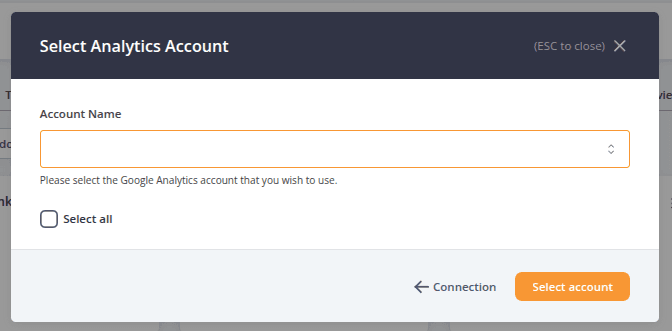
Step 7) Select your Google Analytics property, and click “Select property”
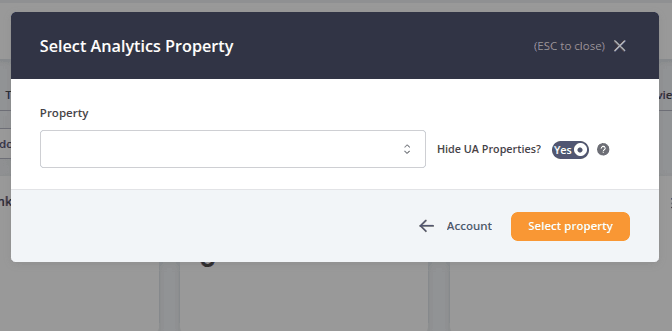
Step 8) Your connection is set up.
Your domain is now connected to Google Analytics! If you scroll down, you will see the Organic Traffic chart which displays data from your connected property.
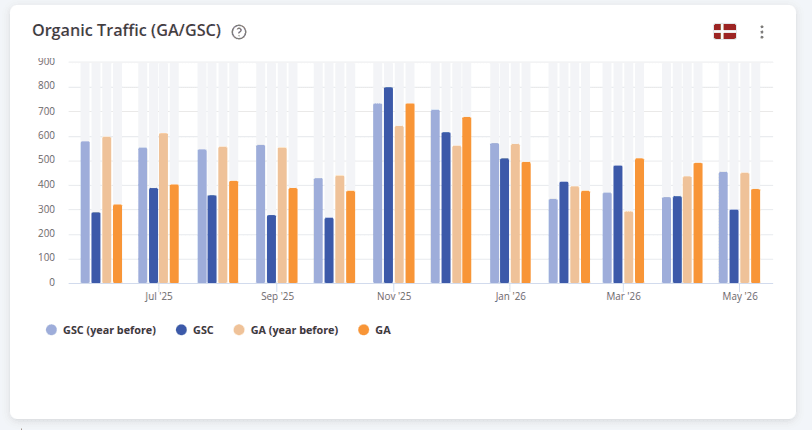 Have you already set up a connection to Google Analytics choose your connection in step 2 and follow the steps 6-8
Related help guides
Connecting to Google Search Console
Connecting to Adobe Analytics
Connecting to Data Studio
Still need help?
Customer support
Our live support team is ready to assist you with any issues.