

The Keyword Table
KeywordsA comprehensive guide to the keyword table
Columns
Keyword
The keyword is the search phrase that you want to look up on Google or another search engine. Note that you can search for specific keywords simply by pressing Ctrl+F (or by clicking the funnel next to the header).

You can also click on the individual keywords to show the ranking history for this keyword.
Search type
For each keyword, the search can be performed on either a mobile device or a desktop computer. Each keyword can have only one search engine associated with it. Duplicate the keyword to track it for both devices.
Starred
Starred keywords are keywords that you want to keep a close eye on. You can use them to quickly show only the most important keywords by filtering out unstarred ones. In addition, you will receive notifications if there are significant changes in the ranks for starred keywords.

In this example, we have starred ‘how to analyse serp features’ and ‘featured snippet overview’ and can easily find these keywords by applying the “Starred” filter.
Domain
The associated domain for each keyword. This column is mostly relevant when viewing the keyword list in a group view as the keywords here might be associated with different domains.
Description
It is possible to write a custom description for each keyword. This is saved and shown in this column.
Location
For each keyword, a specific location and language+country (also known as the locale) can be specified. This is decided when adding the keyword and the chosen location and locale are shown in this column. The location is free text and matched by Google to locate the best match in the selected country. We recommend always selecting a suggestion from Google when adding keywords.
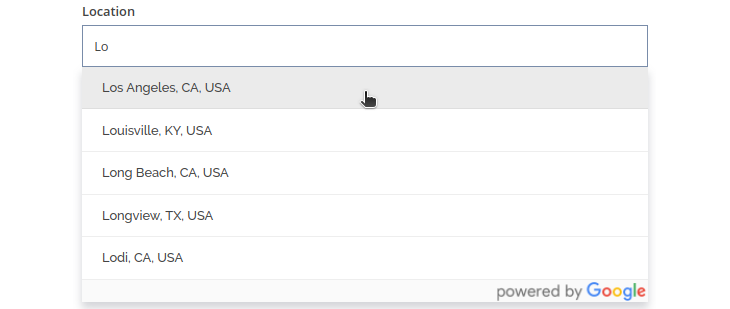
If the location is left blank, the search is performed on a general by country level. In the picture below, the top location is on a country level while the others have a specific location.

Search intent
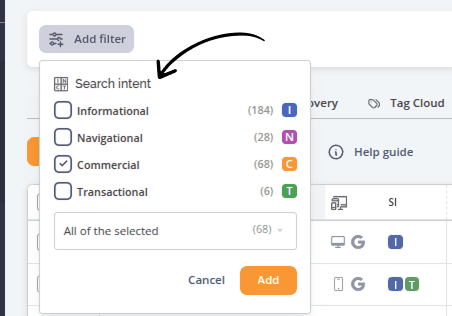
The search intent column shows the search intent based on AccuRanker’s proprietary AI model. Click here for an introduction to search intent.
In the keyword list, you can filter by search intent in a number of ways, selecting for instance keywords that are both informational and commercial
Rank
The rank of the keyword on the SERP, the first result will have rank 1, the second rank 2, and so forth. If your domain is not found within the first 100 results this column will show “Not in top 100”. If your domain appears more than once on the SERP the rank will show a small + icon which you can click to expand the extra columns and see the “extra rank(s)”. If the rank is “Above the Fold”, meaning your website is visible on the SERP without scrolling, a small newspaper icon will appear in orange.

Rank +/-
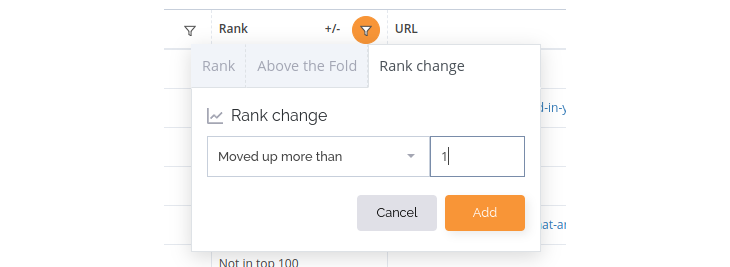
The +/-column after Rank indicates the change in rank as compared to the date selected in the “Latest compared to” dropdown.

Note that you can sort this column to see the ranks which have changed the most, or filter by it by clicking on the funnel.
Base Rank
The base rank in AccuRanker represents the unaltered rank of a result on a SERP page before any exclusion of elements on the page. Exclusions can be based on specific keyword settings. Click here to learn more.
Base Rank +/-
The Base Rank +/- column shows the change in Base Rank compared to the date selected in the "Latest compared to" dropdown.
Max Rank
In AccuRanker, the Max Rank is the highest achievable position on the SERP for a given keyword, taking into account ignored domains, ignored local results, or featured snippets, if these settings are applied. It reflects the best (base) rank you can attain for a given keyword.
URL
In the URL column, the landing page for your top result is shown. You can set a preferred URL for a specific keyword which will tell whether your highest-ranking result points to this URL or not. This is indicated by the colored dot next to the URL. There are three cases for the preferred URL:
- If the URL is the preferred URL, the dot will be green
- If the preferred URL is not set, it will be yellow
- If the URL is different from the preferred URL the dot will be red
Search Volume
The Search Volume column shows the monthly average search volume for the keyword over the last 12 months. You can click the icon next to the number to expand a graph showing the search volume history.
AI Search Volume
The AI Search Volume column shows the latest calculated monthly AI Search Volume. You can click the icon next to the number to see a graph showing the AI Search Volume history for both desktop and mobile searches.
CTR
The CTR (click-through rate) column shows the estimated click-through rate based on AccuRanker’s proprietary AI model. It is an estimate of the percentage of users who see your content on the SERP (impressions) and click it (clicks). The estimate takes into account a wealth of information, from pixel position to the presence of ads. Please note that this value is not used for calculating SoV, but is used in the AI SoV column.

CTR +/-
The +/-column after CTR indicates the change in CTR as compared to the date selected in the “Latest compared to” dropdown.
The CTR will change depending on the SERP - even if your rank stays the same.
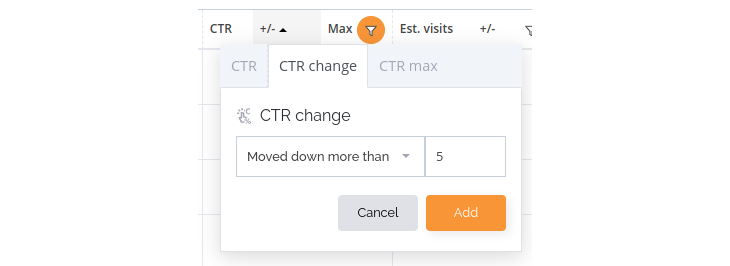
Note that you can sort this column to see ranks where the CTR has changed the most, or filter by it by clicking on the funnel or pressing Ctrl+Shift+F and searching for ‘CTR change’.
CTR Max
The max CTR column shows the estimated CTR for the result on the SERP with the highest CTR, typically this is rank 1, but in some special cases (depending on the SERP) it can be another rank. This column gives you an indication of the potential of this keyword. As in the example with CTR +/- just above, you can of course also sort and filter by CTR Max.
AI SoV
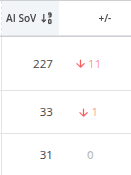
The AI SoV (AI Share of Voice) column is the value found in the Searches column multiplied by the value found in the CTR column. It is an estimate of the monthly average traffic from this keyword if the SERP does not change. This corresponds to the SoV column but uses our dynamic CTR model instead of a static one. See also the section What is the difference between AI Share of Voice and Share of Voice at the bottom of this guide.
AI SoV +/-
The AI SoV +/- (AI Share of Voice change) column shows the change in estimated visitors as compared to the date selected in the “Latest compared to” dropdown.
Max AI SoV
Max AI SoV in AccuRanker refers to the AI Share of Voice corresponding to the Max Rank on the page. It helps assess the potential of a keyword. It takes the AI-based dynamic click-through rate (CTR) for the max rank and multiplies it with the search volume. The max rank is 1 unless you have applied specific keyword settings. Click here to learn more.
AI Traffic Value
AI Traffic Value is the product of AI Share of Voice and the average cost per click from Google Ads. It estimates the potential traffic value a keyword can generate at its maximum rank on the SERP, factoring in both Search Volume, CTR, and advertising cost.
Max AI Traffic Value
Max AI Traffic Value is the AI Traffic Value corresponding to the max rank. It helps assess the potential value of a keyword, if you were to achieve the max rank. The max rank is 1 unless you have applied specific keyword settings. Click here to learn more.
CPC
The CPC column shows the cost-per-click for ads on the SERP for the keyword. The data is pulled from Google Ads. The CPC tells you something about the value of traffic from this keyword as a high CPC must mean that traffic from this keyword is worth the high cost of a click.
Ad Comp
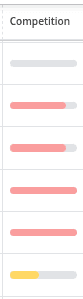
The Ad Comp (Ad competition) column shows the ads competition for the keyword pulled from Google Ads. A red bar indicates high competition, a yellow bar indicates medium competition and a green bar indicates low competition.
SoV
Share of Voice (SoV) is an indicator for the traffic from the given keyword calculated using an average static CTR based on the rank of the keyword. The SoV can be configured to be shown as a percentage by visiting Settings > Edit domain > Show advanced settings. For a more precise traffic estimate for this keyword see AI SoV.
Max SoV
Max SoV in AccuRanker refers to the Share of Voice corresponding to the Max Rank on the page. It helps assess the potential of a keyword.
Traf. Val.
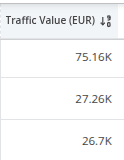
The Traf. Val. (Traffic value) is the value found in the Share of Voice (SoV) column (unless you have configured SoV to show as a percentage) multiplied by the value found in the CPC (cost-per-click) column. This is an indicator of the value of the traffic for the keyword - how much you would need to spend on ads to get the same traffic from the same keyword if your domain was not found on the SERP.
SERP features
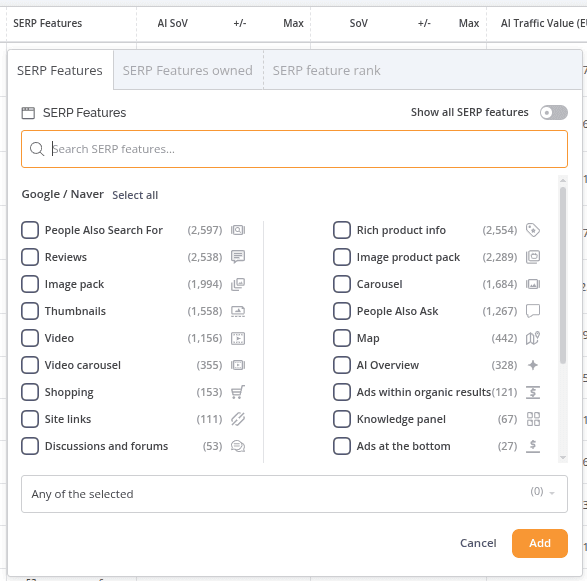
The SERP features column shows icons for all the features found on the SERP, and whether your domain is found in each of these features. As with the other columns, you can also filter the keyword list to see only results with certain SERP features.
Top domain
The Top domain column shows the Domain occupying the number one rank on the SERP. Hover this column to see the top 10 domains and their CTRs.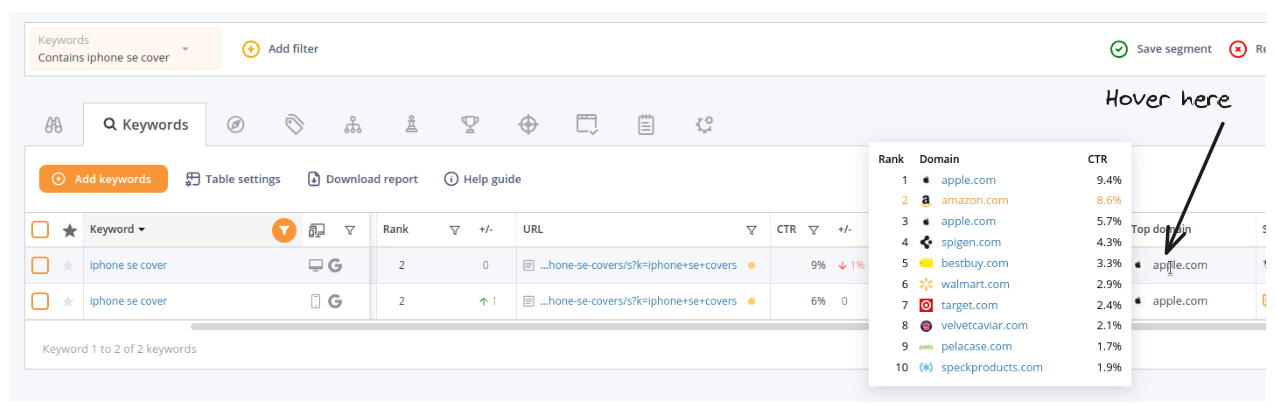
Pixels from top
The “Pixels from top” column shows how far down (measured in pixels) your result is on the SERP. The lower the result, the better.
The actual position of a result on a page varies a lot even for the same rank, thus pixel position is an important metric to understand the potential of different rankings. The pixels from top metric is an instrumental part of AccuRankers AI CTR model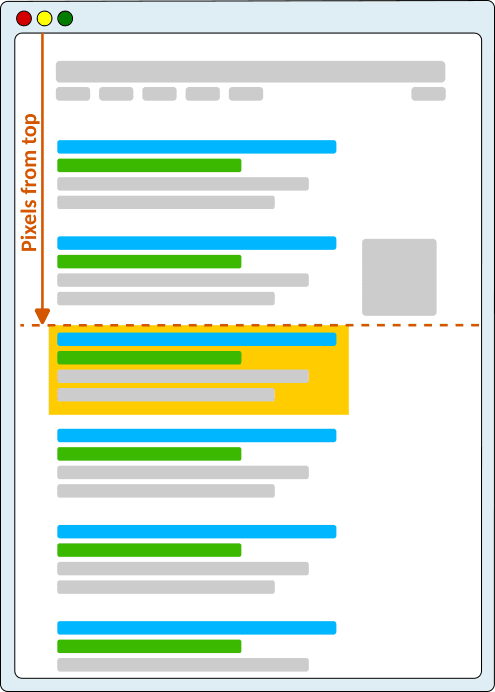
Pixels from top +/-
The Base Rank +/- column shows the change in pixel position as compared to the date selected in the “Latest compared to” dropdown.
Created on
The date the keyword was added to the system.
Age
The time elapsed since the keyword’s SERP was refreshed.
Actions
There are two action buttons in this column. One to view the SERP and one to refresh the SERP for this keyword.

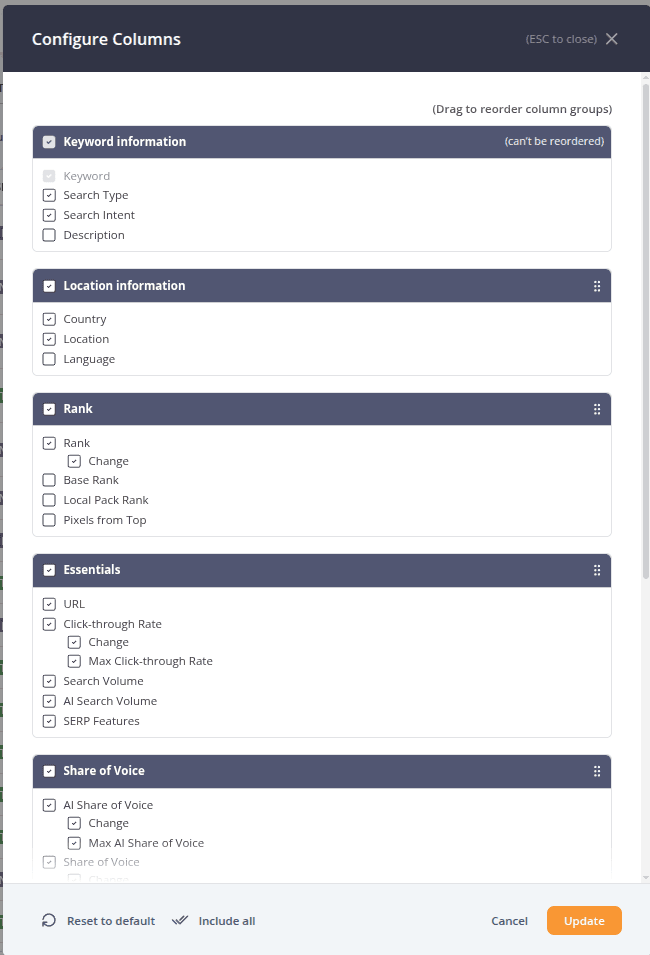
How do I change which columns I see?
Just next to the ‘Add keywords’ button you find the table settings.
Here, you can adjust the columns you see as well as the table layout (Default, Comfortable or Compact)
How do I see historical data?
For individual keywords
You can see historical data for individual keywords simply by clicking a keyword in the “Keyword” column.

For the whole keyword table
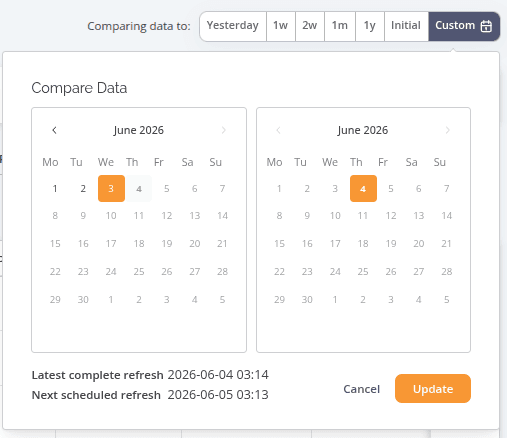
You can see historical data for the keyword list by changing the “compare to” filter found on the top right side of the keyword list.
This will bring up a calendar where you can update the dates viewed.
What is compared in the +/- columns?
You specify the dates compared by changing the Compare to filter in the top right corner of the keyword list

How do I view the SERP?
You can view the SERP for each keyword by clicking the magnifying glass to the far right of the keyword list.
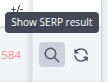
Note, that if you have deselected the “Actions” column in the table settings, you cannot see this.
How do I edit a keyword’s settings?
To edit settings for one or multiple keywords you need to select the keyword(s) by clicking the checkbox next to the keyword(s)

Then the Edit menu will appear

Here, you can select “Change settings” for the keyword. Learn more about the keyword settings here
How do I add tags to a keyword?
To add tags for one or multiple keywords you need to select the keyword(s) by clicking the checkbox next to the keyword(s)

Then the Edit menu will appear

Here, you can select “Add tags”. If you need to delete a tag, click on “Delete” next to the Edit button.
How do I delete a keyword?
To delete one or multiple keywords you need to select the keyword(s) by clicking the checkbox next to the keyword(s)
Then the Delete menu will appear

Can I filter in the keyword list?
To add a filter you can either click the “Add filter” button in the bar above the keyword list or press Ctrl+Shift+F. Both of them will bring up AccuRanker's many different filtering options. You can also click each of the funnels in the column header to bring up the filters relevant to the corresponding column.
Can I search for a keyword?
You can easily search for a specific keyword either by pressing Ctrl+F or by clicking the funnel in the keyword column.

Or by clicking “Add filter” in the filter bar and choosing “Keyword”. Either choice will bring up a filter:

Can I refresh keywords?
Yes. You can refresh a keyword on demand by clicking the refresh icon to the far right on the keyword list. You can also refresh all keywords by clicking on the orange refresh button in the top right of the keyword list.

What is the difference between AI Share of Voice and Share of Voice?
The core difference between these two metrics is that the calculation for AI Share of Voice uses an AI dynamic click-through rate model based on the SERP, which is more precise than the static model used for Share of Voice which only depends on the rank. You may ask: Why should I then use Share of Voice? The answer is twofold:
- Share of Voice gives you a more stable comparison focusing on the rank and search volume and disregarding SERP layout fluctuations. For instance, AI Share of Voice may change from day to day even if you have the same rank if there is a featured snippet one day and not the next.
- You may have a long history of using the Share of Voice metric for tracking progress - the AI Share of Voice column model only has data from mid-2021 and forward.
That being said, our general recommendation will be to focus more on AI Share of Voice than Share of Voice moving forward.
Still need help?
Customer support
Our live support team is ready to assist you with any issues.