

Preferred URL
KeywordsSpecify which landing pages should be monitored for your keywords
Why should I set up a preferred URL in AccuRanker?
In AccuRanker you can monitor which landing page Google is sending traffic to for certain keywords. The software also lets you set the preferred URL for each keyword.
Setting preferred URLs can help you monitor if customers arrive at the right landing page when they click on your website in the SERP. This can help improve user experience, reduce bounce rate, as well as increase average session time.
Step 1)
Go to the Keywords list of the domain you want to set preferred URLs for.
Step 2)
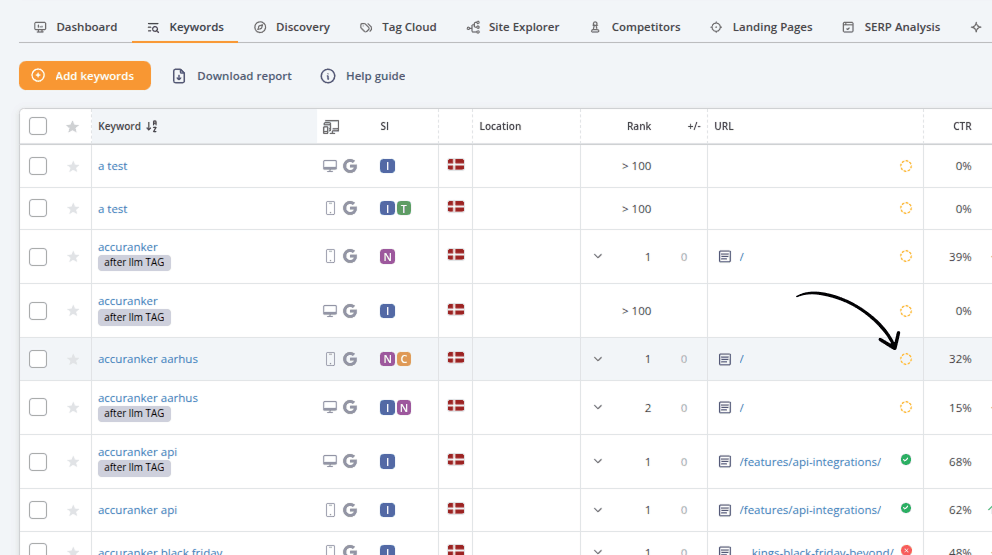
To set the preferred URL for an individual keyword, click the yellow dot right of the URL. You can also select multiple keywords you want to set the preferred URL for by checking the boxes on the left of each keyword.
Step 3)
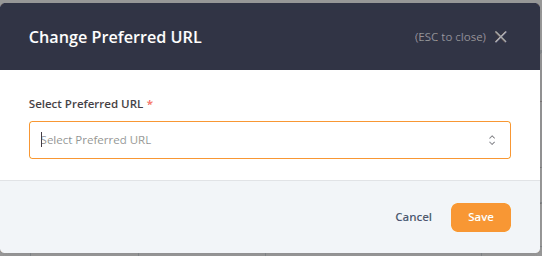
Select the path for the preferred URL. You can select this from the sub-menu or type in the path yourself.
The yellow dot will now turn red or green, depending on whether the preferred URL matches the URL that the search engine is pointing towards.
Green means the preferred URL matches the landing page used by the search engine for a certain keyword.

Red indicates the opposite – that the preferred URL doesn’t match the preferred landing page.

We recommend looking through your keywords and setting preferred URLs for the keywords where the landing page isn’t correct.
Still need help?
Customer support
Our live support team is ready to assist you with any issues.