

Icons and Symbols in AccuRanker
Getting StartedA complete overview and meaning of the icons in AccuRanker
What insights does AccuRanker’s keyword list offer?
Notifications Star
Clicking the Notifications Star for selected keywords on the dashboard will give you a notification whenever a significant change in rankings occurs. Learn more about notifications in AccuRanker.

Tags
Tags can be attached to each keyword. This is one way of categorising your keywords in AccuRanker – for example so a particular team can easily access them.

Learn how to tag keywords.
Local Results
Local results are counted in the rankings by default. It’s possible to ignore local results when uploading keywords. Read more in the ‘Ignore Local Results’ section below about how you can ignore local results.
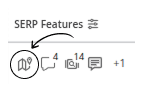
Ignore Local Results
This option will change the way rankings are counted and displayed in AccuRanker.
Selecting this option may mean you get different results in AccuRanker than on the search engine result page (SERP). This is because when local results are ignored, AccuRanker will provide the organic rankings for results directly under the local pack.
Read more about ignoring local results.
Featured Snippets
Featured snippets are also counted in the rankings by default, but can also be ignored.
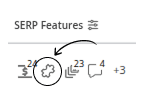
Ignore Feature Snippets
Similar to ignoring local results, ignoring featured snippets may mean your rankings in AccuRanker don’t reflect those on the SERP. This is because the software will start ranking from the first organic result, beneath the featured snippet.
Ignore in Share of Voice
Selecting this option means the keyword won’t be included in our Share of Voice metrics, often used for brand name keywords.
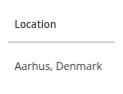
Location
Choose the location you wish to target.
SERP Features in AccuRanker
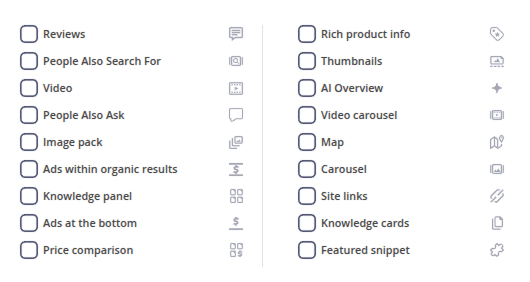
AccuRanker offers the possibility to identify multiple SERP features, so you can better understand the search engine you are targeting.
Read more about tracking SERP features.
Title Tag and Meta Description
The title tag and meta description displays the same information as shown on Google and Bing.
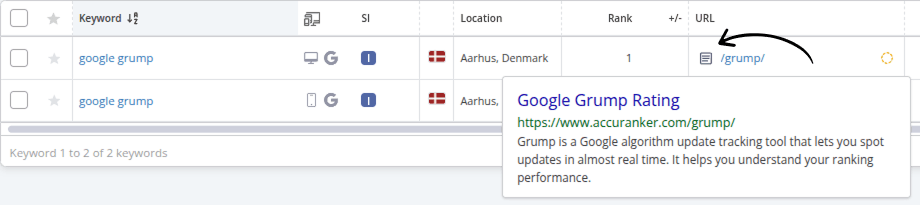
Preferred URL
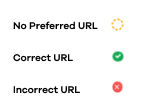
The preferred URL option allows you to see if search engines are sending traffic to the correct landing page for your target keyword. If not, you can change the URL to the preferred one to get a better understanding of how much traffic is coming to your landing page.
Searches
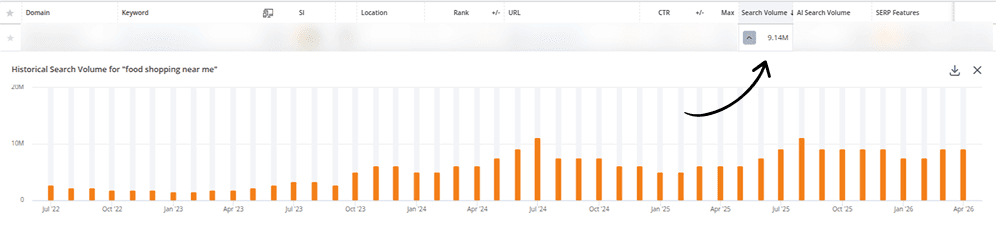
This feature shows the average monthly searches for your keywords.
Click on the figure to see the actual numbers on a per month basis.
SERP View

Click the magnifying glass icon to see the SERP that we got directly from the search engine, which is where all our data is based.
On-Demand Updates
Update the data on all keywords at the click of a button. AccuRanker prides itself on speed and accuracy, so you’ll have the freshest data in no time.

Rank and Visibility change over time
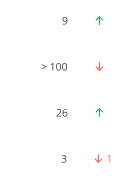
The green colour indicates a positive change in visibility and ranking, while red shows a negative change.
Still need help?
Customer support
Our live support team is ready to assist you with any issues.